# GA4 & Consent Mode with JENTIS

{% hint style="info" %}
This article is intended for informational purposes only and does not constitute legal advice. For advice tailored to your specific situation, consult your Data Protection Officer of a qualified attorney.
{% endhint %}

In the realm of digital analytics and marketing, JENTIS stands out as a pivotal data-capturing platform and tag management software, streamlining how organizations track user interactions on their digital platforms. With increasing emphasis on data privacy and user consent, understanding and implementing consent configurations, like the "Essential Mode" in JENTIS, becomes crucial. This article delves into the intricacies of Essential Mode and its integration with Google Consent Mode, elucidating their roles in responsible data capture and processing.

## Understanding Essential Mode in JENTIS and Google Consent Mode (GCM) Differences <a href="#googleconsentmodeguidewithjentisandessentialmode-understandingessentialmodeinjentisandgoogleconsentm" id="googleconsentmodeguidewithjentisandessentialmode-understandingessentialmodeinjentisandgoogleconsentm"></a>

Essential Mode in JENTIS is a consent configuration setting vital in aligning website data tracking with user consent. This mode enables JENTIS customers to define, within their Data Protection guidance, what is considered “strictly necessary” data for their business and configure its tracking for cases where consent is not given. This approach not only enables you to adhere to privacy regulations but also respects user preferences, a cornerstone in building trust in the digital age.

Essential Mode operates on a different level than, for example, Google Consent Mode. Here is the key difference at a glance:

* **JENTIS Essential Mode**: A data routing option in your data capturing platform (selecting and activating the forwarding of data to an endpoint) in a defined level of granularity. Your triggers decide **when** and your variables and applied functions (such as *anonymization*) **what** data is forwarded.
* **Google Consent Mode**: A configuration that indicates **what** data will be captured and **how** it is processed further to be used in reporting, machine learning etc. at this specific provider (Google).

With JENTIS you control **what** and **when** data is available, with Google Consent Mode you tell the provider **how** to treat received data. Both are very different topics so you may need to consider: is it necessary to apply a redundant setting with both, Essential Mode AND Google Consent Mode?

{% hint style="warning" %}
Essential Mode and JENTIS Data Capturing Platform is your full-control unit. If your JENTIS configuration already considers the consent choices of your users, you may need to consider if applying further controls (like Google Consent Mode) is necessary. As Google Consent Mode can redundantly further redact data or make it less valuable, even though this data has already been redacted via JENTIS before its transmission to Google.

Make sure to read on to better understand this fine but important differences.
{% endhint %}

Read more on the topic of Essential Mode in our documentation articles:

* [JENTIS CMP Connectors](https://docs.jentis.com/consent-center/how-jentis-handles-consent/jentis-cmp-connectors)
* [JENTIS Essential Mode](https://docs.jentis.com/jentis-dcp-elements/tags/how-to-configure-a-tag/essential-mode)

The following are possible combinations of JENTIS Essential Mode and Google Consent Mode. These can all be plausible settings, as JENTIS Essential Mode and GCM are two different things that can operate in a mix-and-match combination.

Let’s reflect in a 2x2 table the possible combinations:

* **Option A**: JENTIS receives consent (true/false) and submits it exactly to Google (true/false)
* **Option B**: JENTIS receives consent (true) and submits “granted” to Google, in case of “false” however it still forwards “granted” to avoid applying a potentially redundant redaction of the data

<table data-full-width="true"><thead><tr><th width="204.30078125"></th><th>GCM: Consent Granted</th><th>GCM: Consent Denied</th></tr></thead><tbody><tr><td><p><strong>JENTIS Essential Mode</strong><br><strong>✅</strong></p><p><br><strong>Default Tag Execution</strong><br><strong>Positive Consent</strong></p></td><td><strong>Option A - all positive</strong><br>JENTIS tag executes regularly, it is interpreted as consent-granted. Google Consent Mode receives the same (granted) information.</td><td>(this case is not common as there should be no benefit to redact data in case consent is granted, so we will spare the details of this option)</td></tr><tr><td><p><strong>JENTIS Essential Mode</strong><br><strong>❌</strong></p><p><br><strong>Consent Aware Tag Execution</strong><br><strong>Negative Consent</strong></p></td><td><p><strong>Option B - negative and positive combination</strong><br>JENTIS tag execute with your essential mode configuration (anonymizing the data you selected). Google tools however receive the signal to operate as consent is granted. In some cases, this may be a plausible setting, given that on the basis of your configuration via JENTIS the data has been first pseudonymized or anonymized and then sent to Google making further redaction by Google redundant.<br></p><p>Read here how to configure this setting with Google Tags:</p><p><a href="https://docs.jentis.com/documentation/google-consent-mode-guide-with-jentis-and-essentia#Configuring-the-%E2%80%9COption-B%E2%80%9D---A-Mixed-Combination-of-Consent-Data">Google Consent Mode Guide with JENTIS and Essential Mode | Configuring-the-“Option-B”---A-Mixed-Combination-of-Consent-Data</a></p></td><td><strong>Option A - all negative</strong><br>JENTIS tag execute with your essential mode configuration (anonymizing the data you selected). Google Consent Mode receives the same information (consent denied).</td></tr></tbody></table>

Your JENTIS data capturing and tag management configuration is custom to your situation and you must evaluate which option is the right for your website. While the Option A comes as a (logical) default the Option B might also be a good idea. To jump straight ahead into configuring the latter, please find here the section:

* [Google Consent Mode Guide with JENTIS and Essential Mode | Configuring-the-“Option-B”---A-Mixed-Combination-of-Consent-Data](https://docs.jentis.com/documentation/google-consent-mode-guide-with-jentis-and-essentia#Configuring-the-%E2%80%9COption-B%E2%80%9D---A-Mixed-Combination-of-Consent-Data)

## Overview of Google Consent Mode (GCM) <a href="#googleconsentmodeguidewithjentisandessentialmode-overviewofgoogleconsentmode-gcm" id="googleconsentmodeguidewithjentisandessentialmode-overviewofgoogleconsentmode-gcm"></a>

Further we will now focus on the configuration options with JENTIS and GCM specifically.

Google Consent Mode is a framework that allows website owners to adjust how Google tools, such as Google Analytics and Google Ads, behave based on the consent status of users. This mode provides finer control over data processing and capturing, particularly when using the global site tag (gtag.js). It enables businesses to respect user privacy while still gathering valuable insights in a consent-compliant manner.

### JENTIS and Google Consent Mode Integration Options - Important Must Read <a href="#googleconsentmodeguidewithjentisandessentialmode-jentisandgoogleconsentmodeintegrationoptions-import" id="googleconsentmodeguidewithjentisandessentialmode-jentisandgoogleconsentmodeintegrationoptions-import"></a>

Google Consent Mode is another story to an existing epic that is “Consent” in the digital space. Making the world a slightly more complicated place than it was before this contribution. There are some things that you must make sure to be fully aware of so that data is not incorrectly flagged and hence not appearing in your reports or Google tools.

First we want to make sure nothing breaks during the migration phase of an implementation where Google Consent Mode was either in Version 1 (or not yet fully integrated) to Version 2 of GCM.

{% hint style="warning" %}
Please make sure to understand these very important definitions:

1. Google Consent Mode has different implications and requirements based on the execution: **client-side** or **server-side**.
   1. **Client-Side Tags**: regardless if you will use client-side tags with or without JENTIS: the `gtag()` function call (here we refer to Google Tag) that submits data to the global dataLayer (`window.dataLayer` as the GTM default) is the source of truth. JENTIS and/or your website or Consent Management Platform will push information to this interface (setting the default and updates in regards to consent with `gtag` function).
   2. **Server-Side Tags**: with JENTIS any server-side executed tag will compute the consent information based on the vendors settings in your JENTIS Data Capturing Platform. You must make sure the vendors receive the consent correctly for this to function.
2. Make sure that some application pushes a default and update signal to the Google Tag (`gtag()`)! This is crucial as a missing call to this function to set the defaults and update to the latest information will break functionality client-side. The following applications can push this data:
   * your Consent Management Provider (CMP) possibly offers a functionality to submit a default and update based on its consent information.
   * your website possibly can push the default and update to the Google Tag.
   * JENTIS can push a default and update event to the `gtag()` library. On this option please read on “Activating Google Consent Mode Parameters with JENTIS”.
     {% endhint %}

Make yourself familiar with the topic of integrating the Google Tag and Consent Mode into your website. Decide which application will submit the default and update event. The consent settings must be resolved with `gtag()` on client-side, as it will affect all your tags.

### Activating Google Consent Mode Parameters with JENTIS <a href="#googleconsentmodeguidewithjentisandessentialmode-activatinggoogleconsentmodeparameterswithjentis" id="googleconsentmodeguidewithjentisandessentialmode-activatinggoogleconsentmodeparameterswithjentis"></a>

In JENTIS you have control over the values for various settings Google has defined with the Consent Mode version 2 update. This is an optional setting in case you actively want to set those values based on the consent information received in JENTIS.

The following options are available with Google Tags:

* ad\_user\_data
* ad\_personalization
* ad\_storage
* analytics\_storage

The recommendation is to always initialize with all settings value “denied” when a website is rendered, so no service prematurely starts tracking. With JENTIS we will set this as a default when a client-side Google Tag is configured (but making sure not to override any pre-existing settings) within a configuration.

Further, you want to map those settings to individual consents granted in your Consent Management Platform. It can either be a mapping based on categories (ie. “Marketing”, “Statistics”, etc.) or individual services (“Analytics Tool”, “Advertising Tool”, etc.). With JENTIS you can use both options. Here is how to configure this.

{% hint style="warning" %}
**Important**: JENTIS will only submit the default and update events to Google Tag (`gtag()`) if a Google related vendor is implemented **client-side**. Your settings will only apply if this condition is met. If in your configuration no client-side Google Tag activates the Google Consent Mode default and update signals will not be provided by JENTIS.\
**Server-side** tags however will operate based on your vendor settings. It is **not mandatory** to have a client-side tag for server-side to operate and apply consent correctly.
{% endhint %}

### **Configure Consent Mode with JENTIS Vendors**

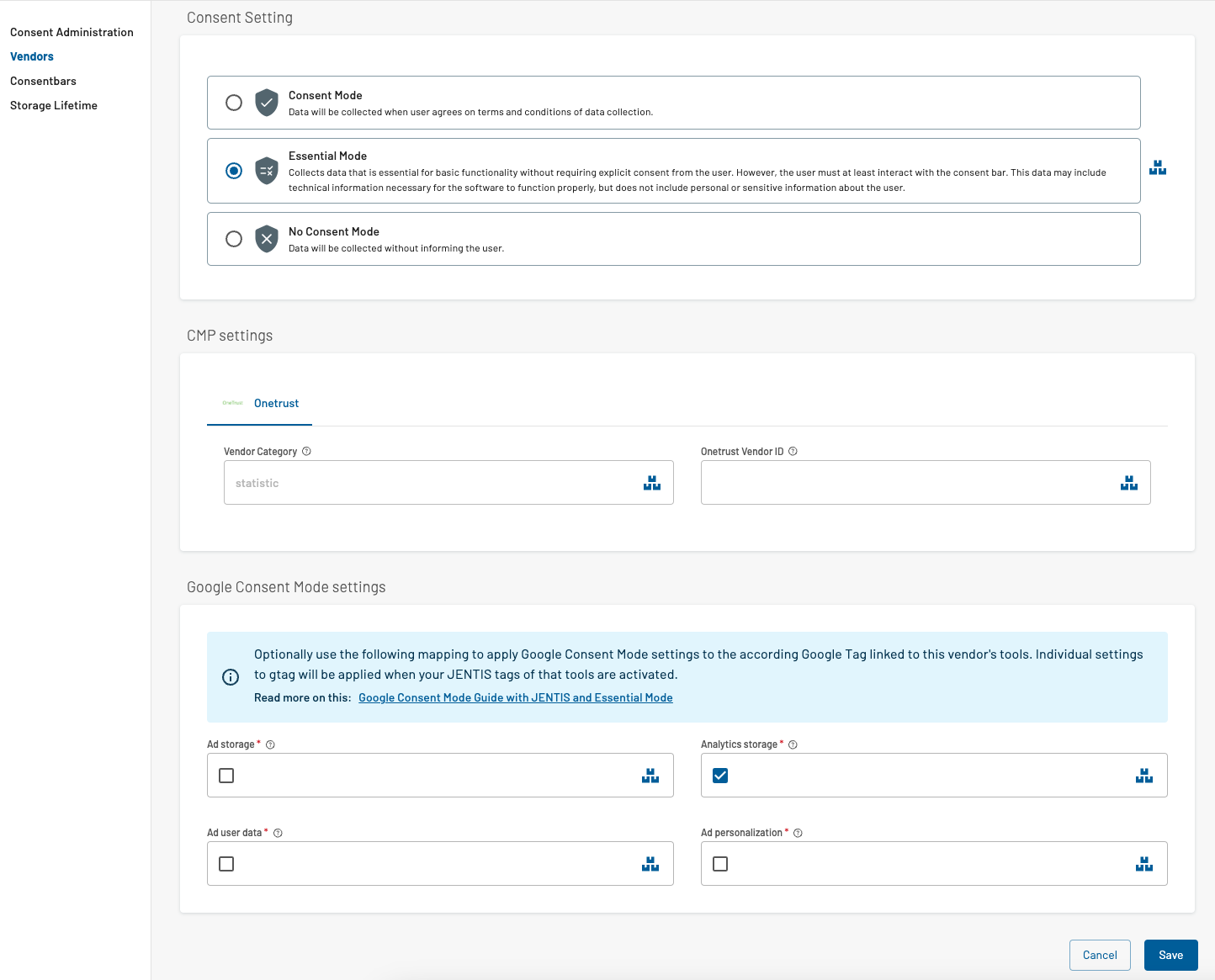
Navigate to the main menu, “Legal Hub: Vendors”. For any Google Tag-related vendor (GA4, Google Ads, etc) and for any custom vendor, you have the option to use the Consent Mode mapping.

It is found in the individual vendors' settings:

<figure><img src="https://2315305008-files.gitbook.io/~/files/v0/b/gitbook-x-prod.appspot.com/o/spaces%2Fy15ncufYr341K5U8q6Of%2Fuploads%2FILIhVkuPiYr3DSZ2m2dT%2Fimage.png?alt=media&#x26;token=a606a7a8-76f0-48c9-a921-640dbd415c3c" alt=""><figcaption></figcaption></figure>

This mapping is based on the keys Google defines (ie. “Ad storage”). For each of that settings, you can select a checkbox. Ticking a checkbox with a vendor means that a link is established on that key and the consent of that vendor. Whenever this vendor receives positive consent information the according setting will receive a “granted” in the Google Tag. Otherwise, the status will remain (“denied” by default).

Not ticking a checkbox will result in no such link. You have to configure this setting otherwise, ie. with you CMP, and there is no task for your tag management then. For example if no checkbox on any vendor is a ticket then JENTIS will not make any Google tag updates regarding consent.

#### **Resolving Conflicts**

At this time you might ask yourself, what if the same Google Consent Mode setting, ie. “Analytics storage” is linked in multiple vendors? How will JENTIS determine if consent is granted or denied in Google Tag?

Simple - let’s run through an example.

The situation is resolved with a “**single signal wins**” method.\
If you have two vendors associated with the Google Consent Mode in JENTIS and both are linked to “Analytics storage”, either of them received consent will apply “analytics\_storage:granted” automatically. Meaning, that as soon as any of both vendors has received consent, it will translate to granted to the linked setting. Regardless of the consent status in the other vendors.

#### **Optional Overriding in Tags**

The vendors settings described in the step before are a global configuration. However, on each individual tag that is affiliated with the Google Tag (gtag.js with the gtag() function) there are placeholders in the JENTIS tags.

If you want to use different individual settings with a tag in JENTIS you can apply those changes and for example set the value to “granted” or “denied” based on a dynamic variable or a static string.

<figure><img src="https://2315305008-files.gitbook.io/~/files/v0/b/gitbook-x-prod.appspot.com/o/spaces%2Fy15ncufYr341K5U8q6Of%2Fuploads%2FNLCTm9jZQHl8KU7K9zYS%2Fimage.png?alt=media&#x26;token=e080d184-cbca-4ac0-b344-c159f25f14c4" alt=""><figcaption></figcaption></figure>

### Consent Mode Options in Client- and Server-Side JENTIS Tags <a href="#googleconsentmodeguidewithjentisandessentialmode-consentmodeoptionsinclient-andserver-sidejentistags" id="googleconsentmodeguidewithjentisandessentialmode-consentmodeoptionsinclient-andserver-sidejentistags"></a>

It is highly important that with server-side data streams (tags) there are other options in configuration as with client side tags and streams. Where as with server-side you are in full control of data streams there is generally less control as the third party library (gtag.js) loads, in a website visitors browser, and acts autonomously.

#### **Consent Mode with Server-Side Tags**

In tags for server-side execution the option for GCM is for the final parameter in the according placeholders.

<figure><img src="https://2315305008-files.gitbook.io/~/files/v0/b/gitbook-x-prod.appspot.com/o/spaces%2Fy15ncufYr341K5U8q6Of%2Fuploads%2FksEfnFU30TbHPHI1nCLY%2Fimage.png?alt=media&#x26;token=7aba0f80-1d15-4288-9d1c-3c50c3c1a87c" alt=""><figcaption></figcaption></figure>

The most important setting is the “Google Consent Status” (gcs parameter). Which displays the current consent status based on a special GCM syntax.

By default the “Google Consent Status” variable will cater to the syntax provided by Google: <https://developers.google.com/tag-platform/security/guides/consent?hl=en#verify_consent_settings>

This variable derives the consent information from your consent settings in the according JENTIS Tag Manager container.

The mapping of that variable value is:

| Value | Meaning                                                                   |
| ----- | ------------------------------------------------------------------------- |
| G100  | Consent is denied for both `ad_storage` and `analytics_storage`.          |
| G110  | Consent is granted for `ad_storage` and denied for `analytics_storage`.   |
| G101  | Consent is denied for `ad_storage` and granted for `analytics_storage`.   |
| G111  | Consent for both `ad_storage` and `analytics_storage` is granted.         |
| G1--  | The site did not require consent for `ad_storage` or `analytics_storage`. |

(based on the documentation of Google from 2024-01-04)

Further in all tags in JENTIS you can configure all Consent Mode related parameters:

* **npa**: Non Personalized Ads flag
* **gcut**: Google Consent Update Type
* **gcd**: Google Consent Default
* **gcu**: Google Consent Update
* **gcs**: Google Consent Status
* **dma\_cps**: Digital Market Act Parameters

By default they are all mapped to specific variables provided to you by JENTIS. Those will access the latest information in the Google Tag client side and apply them accordingly. Source for which is either your CMP or the JENTIS vendors configuration. So any route or option you need is possible.