# Add a Code Element

To add a JavaScript code snippet to your JENTIS Tag Manager container, please follow these steps.

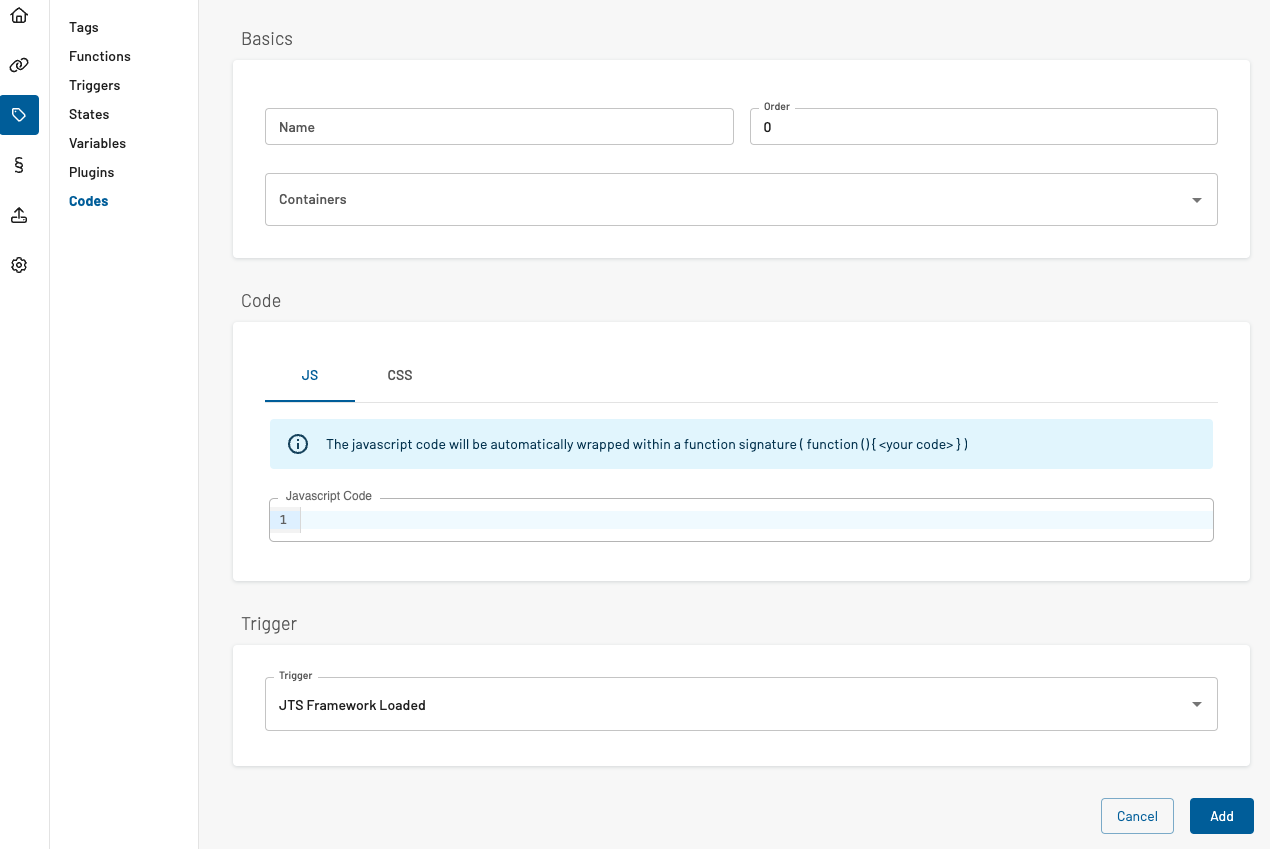
<figure><img src="/files/9pZhmcn6dxoDRXkUr8SF" alt=""><figcaption><p>Navigate to the “Server Tag Manager: Codes” section in your JENTIS DCP account. Click the "Add Code Element"-button to add a new element.</p></figcaption></figure>

In a code element, you must provide the following fields:

* **Name**: a descriptive short name of the code element.
* **Order**: a number that defines the execution order on initialization (Integer). Low numbers are executed first, starting with 0.
* **Containers**: select the containers in your JENTIS Tag Manager account, that will include this code element when loaded.
* **Javascript Code**: the actual code. Please be aware that this code will be interpreted in a closure and minified, so always consider the scope you are working with.
* **CSS Code** (optional): You can add custom CSS to publish to your webpage with this element.
* **Trigger**: Select a trigger that activates this code. Leave it on the default "**JENTIS Framework Load**" to execute immediately.


---

# Agent Instructions: Querying This Documentation

If you need additional information that is not directly available in this page, you can query the documentation dynamically by asking a question.

Perform an HTTP GET request on the current page URL with the `ask` query parameter:

```
GET https://docs.jentis.com/jentis-dcp-elements/codes/add-a-code-element.md?ask=<question>
```

The question should be specific, self-contained, and written in natural language.
The response will contain a direct answer to the question and relevant excerpts and sources from the documentation.

Use this mechanism when the answer is not explicitly present in the current page, you need clarification or additional context, or you want to retrieve related documentation sections.
