> For the complete documentation index, see [llms.txt](https://docs.jentis.com/llms.txt). Markdown versions of documentation pages are available by appending `.md` to page URLs; this page is available as [Markdown](https://docs.jentis.com/use-cases-and-tutorials/click-tracking/click-trigger-properties.md).
# Click Trigger Properties
The context is key whenever a user interaction is involved in tracking (an event).\
You probably want to know **what element triggered the action** — a button, an image, or something else.\
What was the text of that clicked element?
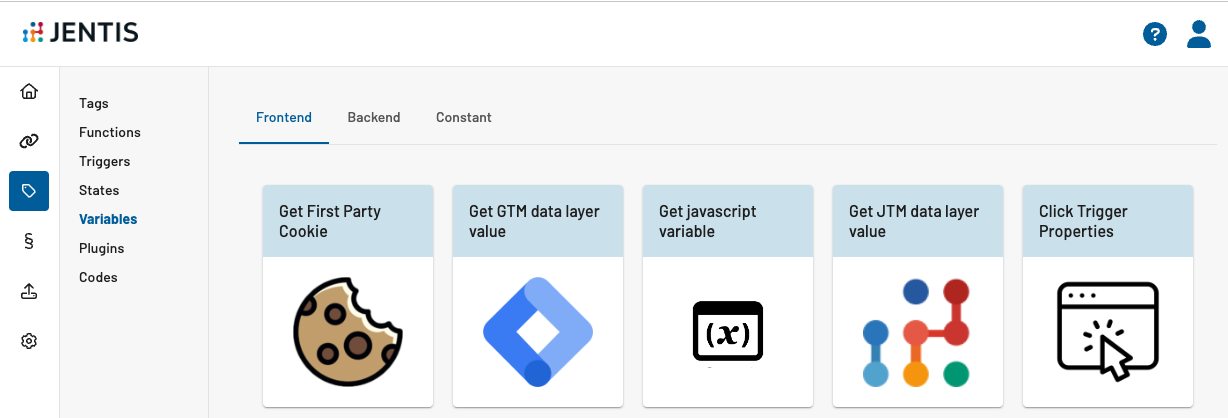
The Frontend Variable type **“Click Trigger Properties”** is the entry point to retrieve information from such elements.\
You can access values like the anchor text, the `href` value, or CSS classes of the clicked link — and even iterate up and down the DOM to extract information from parent or child elements.
Let’s explore this feature in detail in your **JENTIS Tag Manager**.
### Creating a Contextual (Click) Variable
1. Navigate to **Server Tag Manager → Variables** in your JENTIS Tag Manager account.
2. Click **Add new Variable** and select **Click Trigger Properties** as the type.
Now you can fill in all general properties (name, group, etc.).\
The most interesting part follows in the **Element Properties** section.
### Element Properties Navigation — How To
With the **element property value**, you can precisely select what information is relevant for your configuration.\
An element property can reference a **CSS class**, an **attribute**, or any other value in the element’s DOM structure.
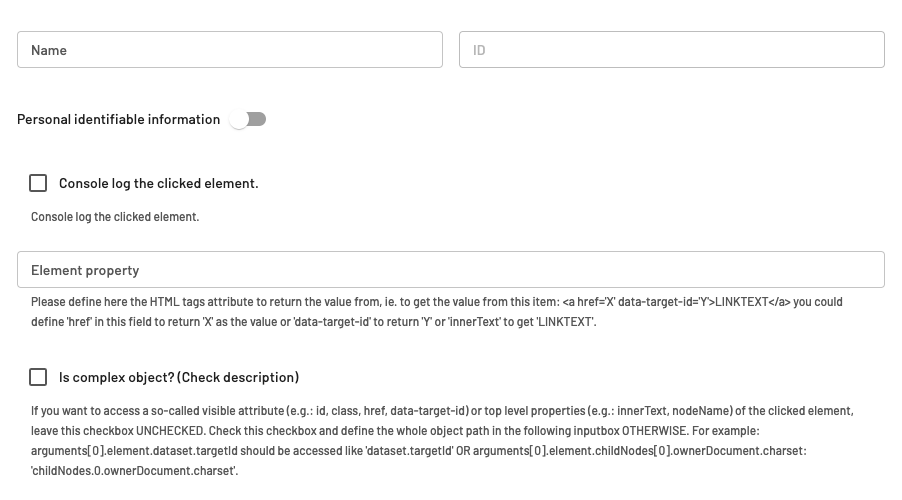
After adding a name, there are three options to use:
#### Console log
When clicking on your website element defined in the tag or trigger, the DOM element is logged in the browser’s developer console.\
This allows you to inspect the actual object structure for debugging.
#### Element property
Define which exact element property to retrieve from the DOM object (string format).
#### Is complex object
If enabled, you can specify a **more complex object path** (e.g. `childNodes.0.ownerDocument.charset`).\
This lets you traverse the full DOM hierarchy.\
Only activate this if you’re comfortable with JavaScript objects and DOM structures.
### Regular Properties (Complex Object OFF)
When **Is complex object** is disabled, you can access standard values without special syntax.
Examples of accessible values:
* Properties in the JS root node (e.g. `innerText`, `nodeName`, `offsetHeight`)
* Attributes of the HTML element (e.g. `class`, `id`, `data-target-id`)
**Example:** Retrieve the `class` value of the clicked element.\
Leave *Is complex object* disabled and set the element property to `class`.
JENTIS will first look for a property named `class` in the JS root node; if not found, it checks the HTML attributes.\
So for the following element:
```
```
* `"class"` → returns `its-a-class`
* `"innerText"` → returns `Submit Data`
* `"data-id"` → returns `1`
### Complex Object ON — Advanced Syntax
When **Is complex object** is enabled, you can traverse up and down the DOM tree.
Example HTML:
```
// Some code
```
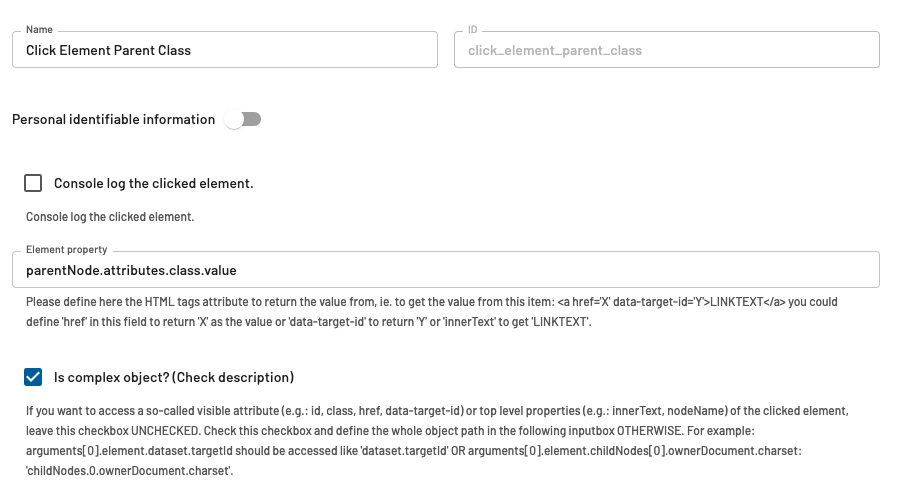
Goal: access the parent element’s class value (`my-parent`).
Configuration example:
Element property (complex object notation):
```
parentNode.attributes.class.value
```
This notation references the full JavaScript DOM structure and gives you fine-grained access to any property.
### Detailed Complex Object Selector Guide
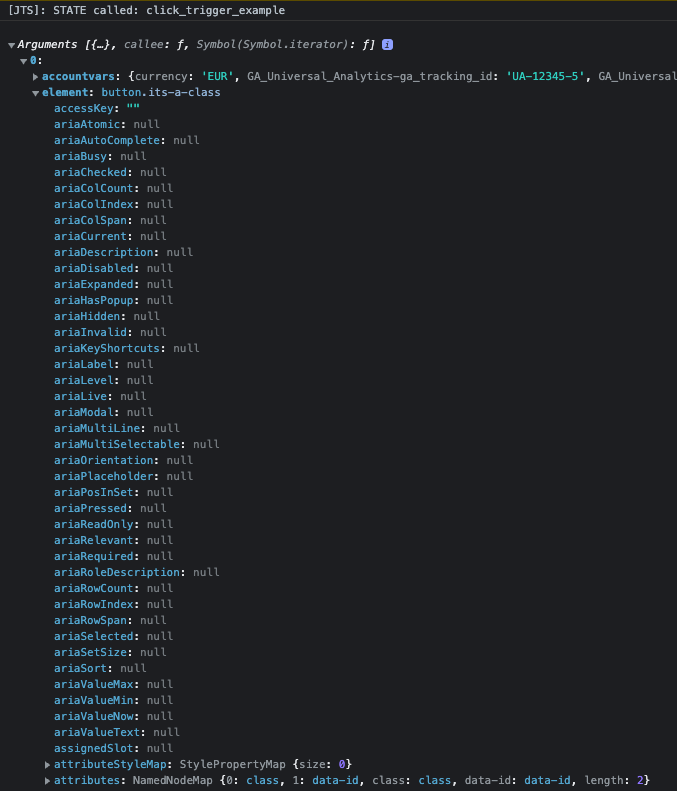
It can be helpful to log the element in the console and explore its properties interactively.\
When console logging is enabled, you’ll see output similar to:
You can see that the element object has an **attributes** property containing details such as `class` and `data-id`.
Access hierarchy via dot (`.`) notation:\
For arrays, reference indexes like `childNodes.2.ownerDocument.charset`, which retrieves the `charset` from the third child node.
With this approach, there are virtually **no limits** — you can access any desired value of a clicked element.
### Summary
The **Click Trigger Properties Variable** empowers you to capture detailed context for user interactions directly from the DOM.\
Whether you need the text, class, or parent attribute of a clicked element, this feature enables flexible and precise event enrichment inside your JENTIS Tag Manager.
---
# Agent Instructions
This documentation is published with GitBook. GitBook is the documentation platform designed so that both humans and AI agents can read, navigate, and reason over technical content effectively. Learn more at gitbook.com.
## Querying This Documentation
If you need additional information that is not directly available in this page, you can query the documentation by asking a question.
Perform an HTTP GET request on the following URL with the `ask` and `goal` query parameters:
```
GET https://docs.jentis.com/use-cases-and-tutorials/click-tracking/click-trigger-properties.md?ask=&goal=
```
`ask` is the immediate question: it should be specific, self-contained, and written in natural language.
`goal` is what the user is ultimately trying to achieve, the reason they need the answer. Sharing it helps GitBook give you a better, more relevant answer. A goal is most helpful when it describes the outcome the user wants rather than restating the question. For example, with `ask=how do I create an API token`, a goal like `automate deployments from our CI pipeline` lets GitBook tailor the answer to that use case.
The response will contain a direct answer to the question and relevant excerpts and sources from the documentation.
Use this mechanism when the answer is not explicitly present in the current page, you need clarification or additional context, or you want to retrieve related documentation sections.