> For the complete documentation index, see [llms.txt](https://docs.jentis.com/llms.txt). Markdown versions of documentation pages are available by appending `.md` to page URLs; this page is available as [Markdown](https://docs.jentis.com/jentis-dcp-elements/versions-and-preview/preview-monitor.md).
# Preview Monitor
With server-side tracking architecture, a configuration preview is key. It makes transparent what is not visible to any third party or website visitor: the communication stream from user to any service provider (tools) made with your JENTIS server. The preview monitor enables you to preview and debug all data streams, be they client—or server-side tags and their streams.
To open the preview monitor, navigate to the "Containers" section that displays all containers with respective versions.
In the containers overview, you can click on the “Preview” button to open your website in preview mode with any version (the currently edited or any of your past versions published, which are available when selecting an individual container).
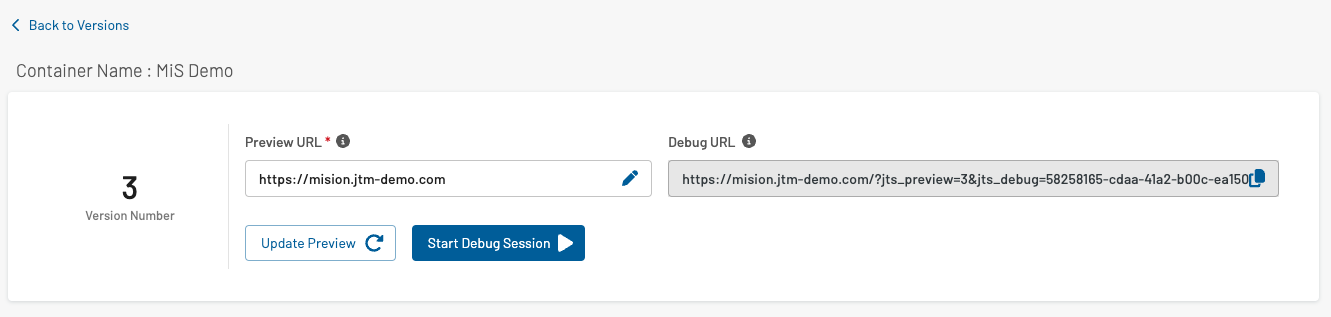
Now you can see in the preview tab the button to open your website (“Start Debug Session”-button) or copy paste the parameters to open your website manually.
{% hint style="warning" %}
You might need to allow the JENTIS DCP to open the popup in a new tab or window. Some browsers are blocking this action by default.
Please note that you can open the preview with any device or browser; it must not be opened in the same window as the current browser (that displays the data streams received in the preview).
{% endhint %}
The query parameters (`jts_preview`, `jts_debug` and `jts_log`) will instruct the JENTIS code in that website to display more information for debugging.
There are two levels to inspect the debugging information:
* client-side (in the browsers developer tools you can find information in the JS console); to fully inspect all client-side executed details the browsers tools can be used (ie. network protocol) or browser extensions (ie Google Tag Assistant in Chrome)
* server-side (in the JENTIS Preview window you'll see the server-side posted data streams and a brief client-side tag overview)
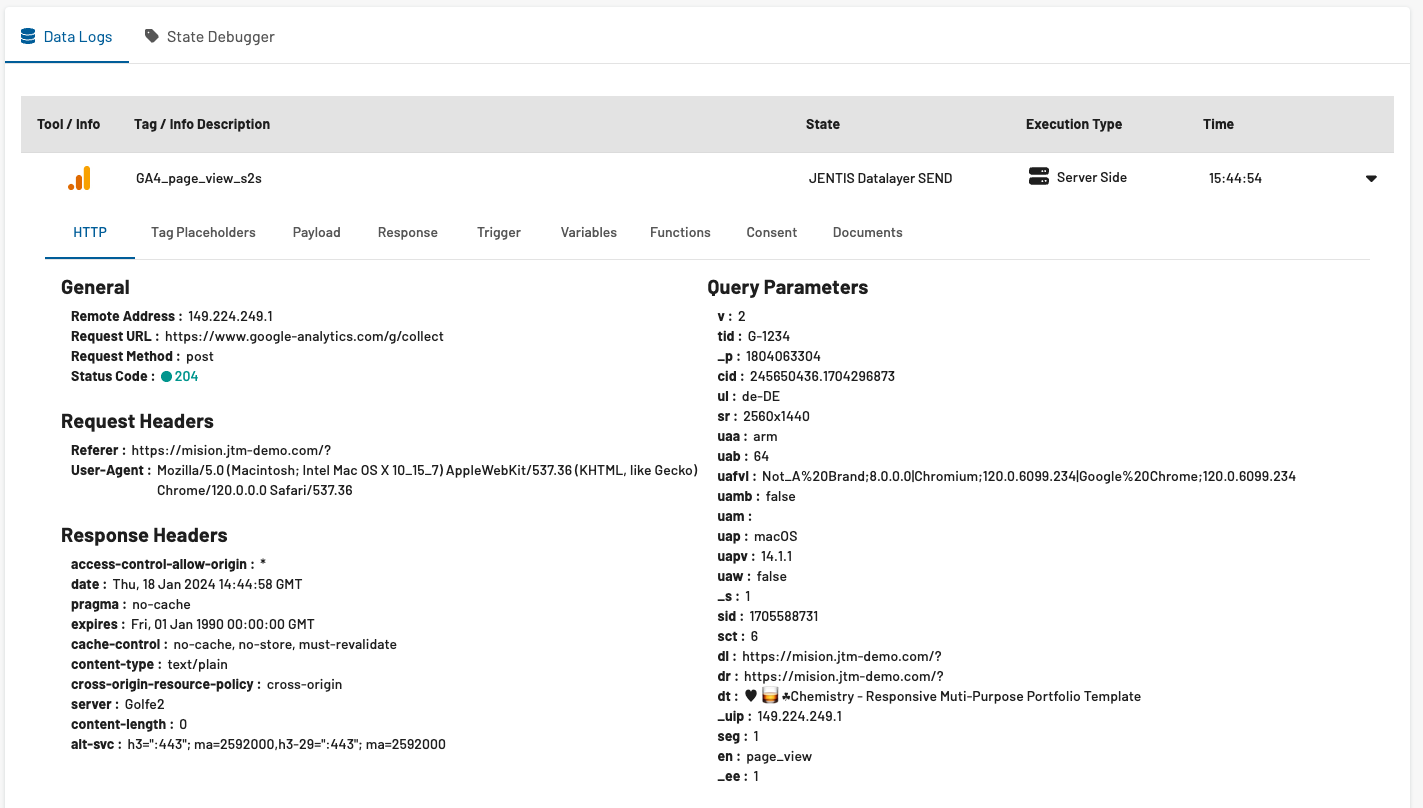
In the inspector window, you will see the incoming State events and the data that was then sent to a tool following a tag configuration.
The following example displays a data stream to a Google Analytics tools pageview-tag. It consists of the payload and HTTP parameters to check if the configuration meets your requirements.
There are two ways to present the preview data. The “Data Logs” view will simply log all the data streams as they appear and show the JENTIS system logs. The “State Debugger” view, however, will group all the data streams by the state (event) they executed based on.
### JENTIS Preview Best Practices
Follow these practices to get reliable preview results:
1. Open your website with the preview URL parameters in a new browser session. Use an incognito window to avoid data from earlier sessions (cached content, previous preview versions or consent decisions). This best reflects a real visitor.
2. Do not switch between subdomains during preview. JENTIS Preview uses browser session storage, and session storage is not shared across origins. If you start on `www.mywebsite.com` and move to `shop.mywebsite.com`, the preview does not continue. Add the URL parameters again and restart the preview on the new domain.
3. Client-side tags appear in JENTIS Preview. However, the preview is server-side, so it cannot show every client-side execution detail, such as full network requests. Check your browser developer tools or provider-specific tools, such as Google Tag Assistant, for deeper client-side debugging.
---
# Agent Instructions
This documentation is published with GitBook. GitBook is the documentation platform designed so that both humans and AI agents can read, navigate, and reason over technical content effectively. Learn more at gitbook.com.
## Querying This Documentation
If you need additional information that is not directly available in this page, you can query the documentation dynamically by asking a question.
Perform an HTTP GET request on the current page URL with the `ask` query parameter, and the optional `goal` query parameter:
```
GET https://docs.jentis.com/jentis-dcp-elements/versions-and-preview/preview-monitor.md?ask=&goal=
```
`ask` is the immediate question: it should be specific, self-contained, and written in natural language.
`goal` is optional and describes the broader end goal you are ultimately trying to accomplish on behalf of the user. GitBook uses it to tailor the answer towards what is most useful for that goal.
The response will contain a direct answer to the question and relevant excerpts and sources from the documentation.
Use this mechanism when the answer is not explicitly present in the current page, you need clarification or additional context, or you want to retrieve related documentation sections.