> For the complete documentation index, see [llms.txt](https://docs.jentis.com/llms.txt). Markdown versions of documentation pages are available by appending `.md` to page URLs; this page is available as [Markdown](https://docs.jentis.com/data-activation/connectors/diy-tool/diy-connector-example-with-conversion-linker.md).
# DIY Connector Example with Conversion Linker
In this guide, we will configure a DIY conversion tag that uses a conversion linker mechanism. Marketing tools often require end-to-end linking of certain parameters from the beginning, such as the entrance page, all the way to the conversion event, which may happen on a later page or in a later session. This is often called "conversion linking." The parameter used to bridge that gap can be a click ID or a marketing campaign ID. This guide shows how to configure such a connector with just two tags in JENTIS Tag Manager server-side.
### Starting the Journey - Entrance Tag
We start with the entrance tag, which activates when relevant information is detected during a page load event.
{% hint style="info" %}
Precondition
You must have a DIY Connector configured. See [How to configure your DIY Tool](/data-activation/connectors/diy-tool/how-to-configure-your-diy-tool.md).\
Once that is set up, you can create a tag by following this guide.
{% endhint %}
1. Head over to the Tag Management section in JENTIS and create a new tag with the new connector.
2. Select a tag template that executes server-side, for example, "Server-side executed via HTTP GET-Request." You can use any server-side tag template because the protocol format, GET or POST, makes no difference here.
3. Give it a descriptive name, for example, "My Conversion Linker."
4. In the next step of tag creation, set the "URL Endpoint" to `https://localhost/` so the data is not sent and is only stored locally on the JENTIS server.
5. Finish the tag creation by selecting an appropriate trigger. You can either use a generic "all pages" trigger, which is the simpler option but may activate even when no data should be stored, or create a custom trigger that activates only when the relevant click ID or campaign ID is present in the URL parameter. This makes the configuration cleaner and more purposeful.
One important part is still missing: preserving the observed click ID or campaign ID value. To do this, we must create a new variable that stores the value.
1. Head over to the JENTIS Tag Manager: Variables section and create a new variable.
2. Select the server-side variable type "Server-Side Javascript Code."
3. Give it a descriptive name, for example, "Affiliate-ID-Storage," referring to the specific click ID or campaign ID name.
In the code editor, enter the following code. It lets you define a configurable parameter key, for example, `gclid` if you want to store the Google Ads click identifier from the URL.
In this example, the variable is named "Store - MISCLID" for a miscellaneous click ID and looks for `misclid` in the URL. The storage lifetime is 30 days, defined in line 14.
```javascript
async function store_misclid() {
//CONFIG - SET YOUR CLICK/CAMPAIGN KEY NAME HERE, ie. "gclid" for Google Ads
const CLICKID_KEY_NAME = "misclid"
// Get the current URL
const currentUrl = this.getFrontendVariable('window_location_href');
// Create a URL object to easily parse query parameters
const urlObj = new URL(currentUrl);
const params = new URLSearchParams(urlObj.search);
const paramValue = params.get(CLICKID_KEY_NAME);
// If the parameter exists in the URL, store it and return it
if (paramValue !== null) {
const expirationTime = Date.now() + 30*24*60*60*1000; // 30 days exp. time
this.userStorage.write(CLICKID_KEY_NAME, paramValue, expirationTime);
return paramValue;
}
// Otherwise, read and return the value from storage
else {
const storedValue = this.userStorage.read(CLICKID_KEY_NAME);
return storedValue;
}
}
```
You are almost done. One final step remains: add the variable you just created to the tag from the previous step. Head over to the tag section and edit the relevant tag for conversion linking.
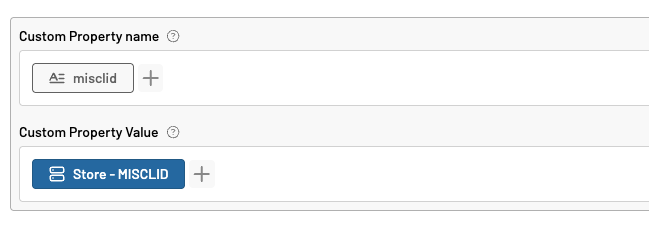
Edit one of the custom fields in the tag. Give the parameter a placeholder name, which can match the variable name, and then assign the actual variable as the value of that placeholder.
You are now ready for the first part of the flow, when users enter the website with a click ID or campaign ID. The next step is to submit the stored value with a conversion to complete the link.
### Hit the Goal - Link the Conversion
The final step is to configure a conversion tag with the same connector so it can use the linked data.
1. Head over to the Tag Management: Tags section in JENTIS and create a new tag with the same connector as in the previous steps.
2. Select a tag template that fits your conversion requirements, for example, a server-side POST request. Make sure it is again a server-side template, because it must match the type from the previous step. It can still use any protocol, such as POST or GET, as long as it runs server-side and can access the stored server-side variables.
3. Give it a descriptive name, such as "Conversion - Purchase."
4. Configure the individual conversion fields required by that protocol, for example, the POST JSON payload parameters needed for the DIY Tool to identify the conversion.
5. Configure the click ID or campaign ID in the conversion fields as well.
1. The parameter key is the field where your endpoint expects the click ID or campaign ID for linking.
2. The parameter value is the variable from the previous step. JENTIS returns the most recently stored click ID or campaign ID from your conversion linking configuration.
6. Finish the tag creation by selecting an appropriate trigger that fits your conversion definition.
You are now ready to preview and test your configuration. Entering the website with the expected click ID or campaign ID executes the campaign linker in the first step. Then, simulating a conversion activates the second tag and reuses the ID value from the previous step. You have now linked the conversion from start to finish.
---
# Agent Instructions
This documentation is published with GitBook. GitBook is the documentation platform designed so that both humans and AI agents can read, navigate, and reason over technical content effectively. Learn more at gitbook.com.
## Querying This Documentation
If you need additional information that is not directly available in this page, you can query the documentation by asking a question.
Perform an HTTP GET request on the following URL with the `ask` and `goal` query parameters:
```
GET https://docs.jentis.com/data-activation/connectors/diy-tool/diy-connector-example-with-conversion-linker.md?ask=&goal=
```
`ask` is the immediate question: it should be specific, self-contained, and written in natural language.
`goal` is what the user is ultimately trying to achieve, the reason they need the answer. Sharing it helps GitBook give you a better, more relevant answer. A goal is most helpful when it describes the outcome the user wants rather than restating the question. For example, with `ask=how do I create an API token`, a goal like `automate deployments from our CI pipeline` lets GitBook tailor the answer to that use case.
The response will contain a direct answer to the question and relevant excerpts and sources from the documentation.
Use this mechanism when the answer is not explicitly present in the current page, you need clarification or additional context, or you want to retrieve related documentation sections.